Sync Diagnostics
Sync diagnostics is a Mobile App screen. The web app talks to the server directly and has no queue to inspect.
If something you recorded has not appeared on your other device, this screen answers why. It shows what is queued, which parts of the sync are running, and — importantly — lets you tell the difference between busy and stuck, which look similar from the outside.
Open sync diagnostics
Tools → Sync diagnostics, or from Settings.
You can run a sync from here by hand: Run sync does the full cycle, Pull and Push do one direction each, and Retry errors re-attempts rows that failed.
What each number means
The screen is grouped into sections.
Network: whether the phone currently has a connection. Offline is not a problem in itself; everything queues.
Push notifications: whether notification permission was granted, whether a push token was registered, and whether the notification channels are set up. This is what to check if you are not receiving conflict or task alerts.
Queue: the three numbers that matter most:
| Number | Meaning |
|---|---|
| Pending | Changes waiting to upload. Normal after offline work; should fall to zero once you have signal. |
| Conflicts | Records parked because two devices disagreed. These need you: they will not clear on their own. See Conflict Resolution. |
| Errors | Rows that failed to upload. Retried automatically with a growing gap between attempts. |
Media: photo uploads pending or failed, each with its own retry.
Lanes: see below.
Watermarks: how far each kind of record has been synced. Useful detail for support; not something you need to act on.
Outbox: the individual queued changes, each showing whether it is pending, conflicted, or errored, with the error message if there is one.
Pending uploads
A pending count is not a warning. Anything you record offline sits in the queue by design, and drains in order when you reconnect.
What is worth a look is a pending count that does not fall while you have a connection. Check the errors count and the outbox list — an individual row will name what went wrong. A common cause is a lapsed subscription: the server stops accepting changes, so the queue holds them until you resubscribe rather than dropping them. See Plans, Trial & Billing.
Queued changes are never discarded. There is no attempt limit that throws work away.
History backfill
The sync runs in two lanes, and this is the part that most often looks broken when it is not.
- The core lane brings down what you need to use the app — your rabbits, litters, current records. When it finishes, the app is usable.
- The history lane backfills older records in the background afterwards.
Each shows a status: idle, syncing, complete, or stalled. A history lane still syncing while you are already using the app is normal and intended — it is why the app becomes usable quickly after a fresh sign-in instead of making you wait for years of records.
Deferred counts records that were skipped on a pull because you had an unsent local change to the same record — OmniBurrow will not overwrite your own unsynced work. They are re-fetched by ID once your change has gone up, so a deferred count that clears itself is the system doing exactly what it should.
When to worry
Most of what this screen shows is normal. Act on these:
- Conflicts above zero. Nothing else will clear them.
- A lane showing stalled with an error message beneath it.
- A pending or error count that does not move across several minutes with a good connection.
- Failed media uploads that stay failed after a retry.
Before contacting support, it helps to: check you are online and signed in, tap Run sync, resolve any conflicts, tap Retry errors, and confirm your subscription is active. If something is still stuck, note the pending and error counts, the lane statuses, and the error message on the outbox row — that is the information that identifies the problem.
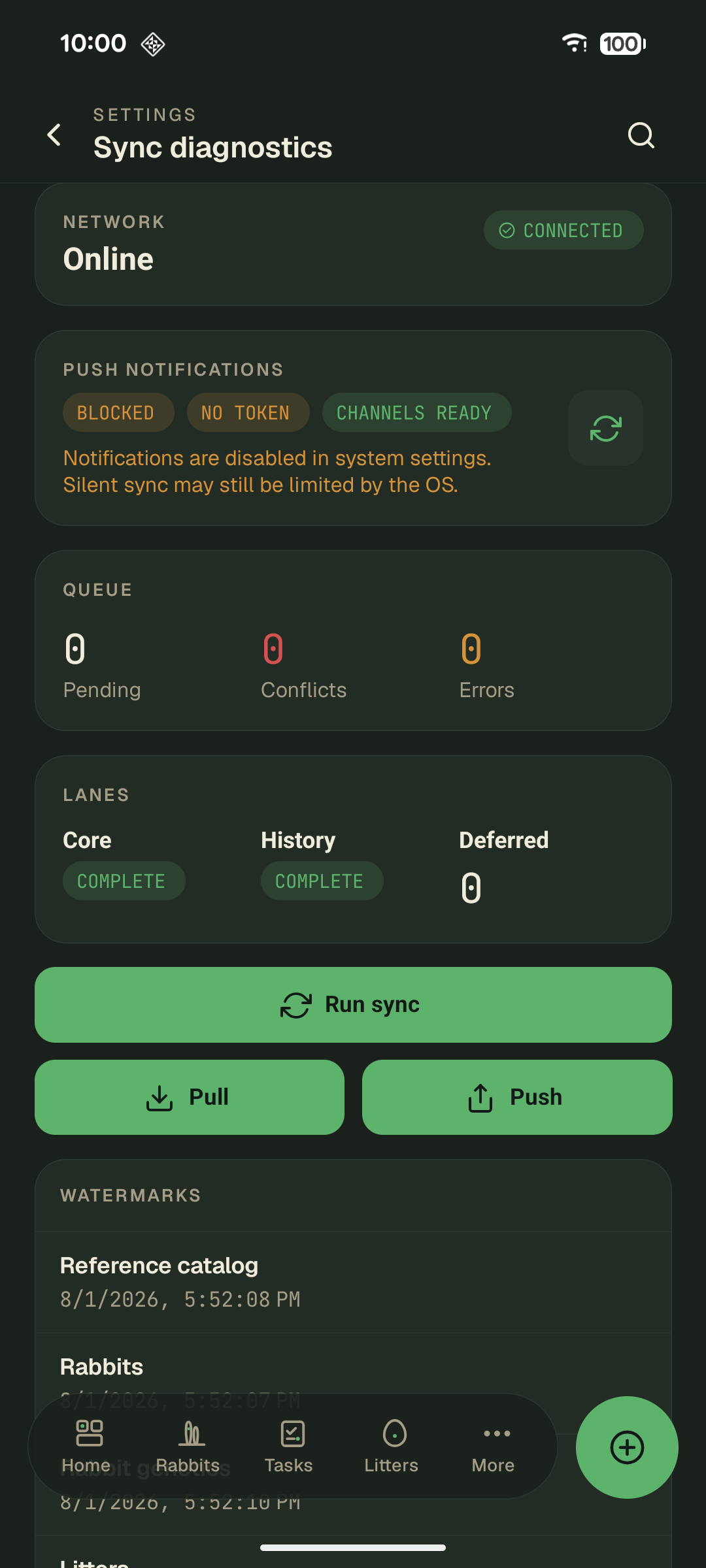
A healthy queue is all zeros and both lanes complete. The orange Push notifications block is the exception on this phone — permission is off in system settings, which is exactly what this section is for.