Import pedigrees from PDFs or photos
Pedigree Import reads a pedigree document — a PDF or a photo of a pedigree form — and pulls out the rabbit and its ancestors, then links them into a pedigree tree for you. This is the right tool when your history lives on paper or in pedigree PDFs rather than a spreadsheet.
How it works
- You upload one or more pedigree documents (PDF or image).
- OmniBurrow's extraction reads the names, ear tags, varieties, and dates from each ancestor box and figures out how they connect.
- You review the result — every field is editable, and you can re-position or re-link an ancestor if the document was messy.
- You commit, and the rabbits are added to your herd with the pedigree tree built.
You can do a single pedigree or a bulk import of many documents at once.
A clean PDF (for example, an Everbreed pedigree PDF) extracts far more reliably than a phone photo of a printout. Photos work, but expect to correct more fields during review — good lighting, flat paper, and the whole form in frame help a lot.
Before you start
- Have your pedigree documents ready as PDF, JPG, PNG, or WebP.
- This step uploads your document for processing, so you need to be online.
- Know your subject rabbit — OmniBurrow picks the main animal from the document, but it's good to confirm it during review.
Steps
- Web App
- Mobile App
Prerequisites
- Signed in to the Web App, online.
- Pedigree files on your computer.
Numbered steps
- Go to Dashboard → Import data and find the Import a pedigree section.
- Drag one pedigree — PDF, JPG, PNG, or WebP — into the drop zone. For a batch, use Import multiple PDFs instead; that route takes several files at once but accepts PDFs only.
- Wait for processing — the status moves from Processing to Awaiting review. You'll see progress update live.
- On the review screen, check each ancestor box. Edit any field, move an ancestor to the correct position, or link a box to a rabbit you already own.
- Click Commit to add the rabbits and pedigree to your herd.
Success state
The status reaches Committed and the new rabbits — with their multi-generation pedigree —
appear in your herd. Open the subject rabbit and view its pedigree to confirm the tree. Web app: extraction lands here, not in your herd. Every ancestor is editable and carries its own
confidence score, and anything resembling a rabbit you already have is flagged as a possible
duplicate so you can link it instead of creating a second copy.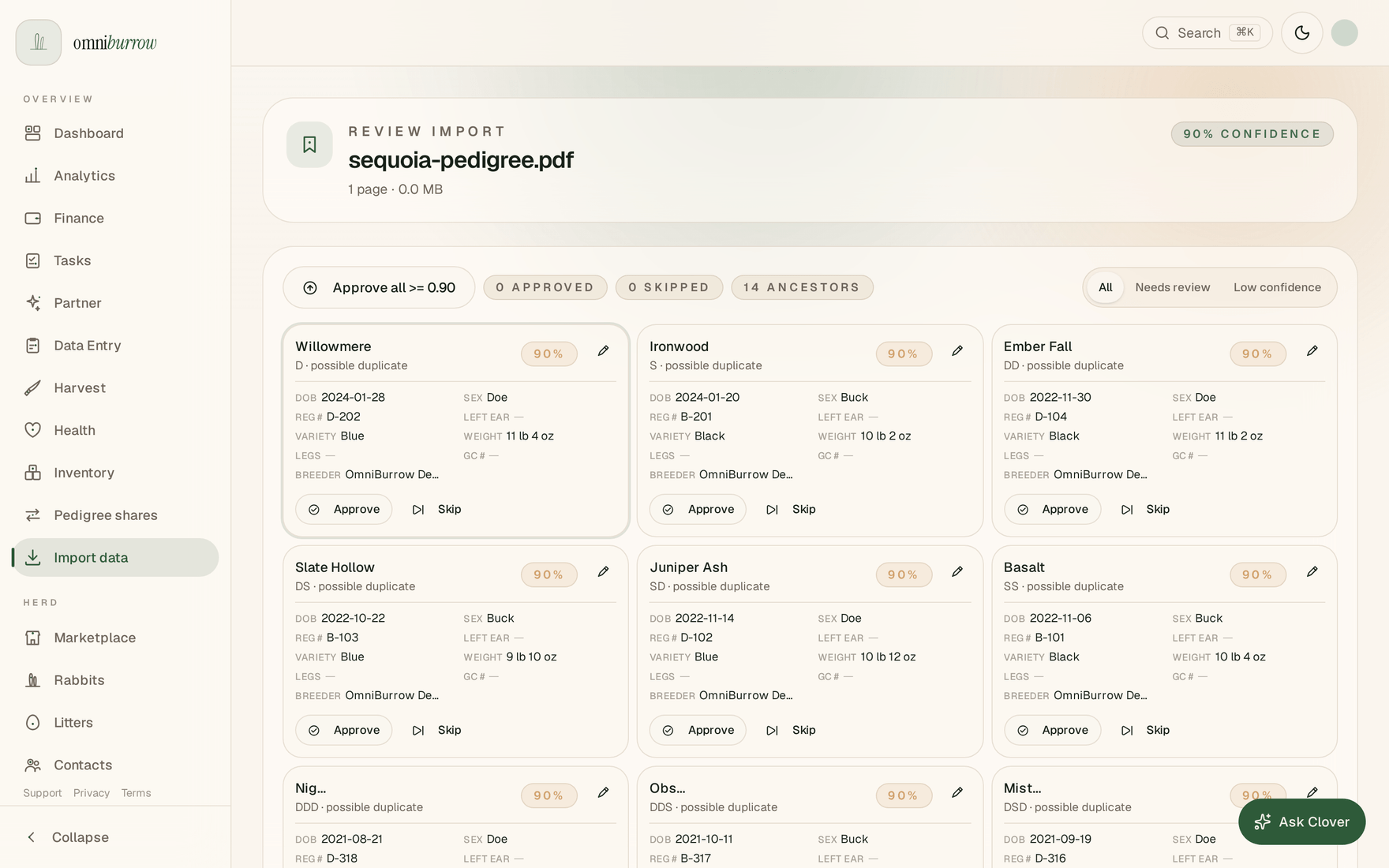
Prerequisites
- Signed in to the Mobile App, online (this step needs a connection to process the document).
- Pedigree files or photos available to the file/photo picker.
Numbered steps
- Open Import and choose Pedigree.
- Pick a PDF or take/select a photo of the pedigree.
- The job processes and moves to Awaiting review; progress updates live.
- On the Review screen, correct any misread fields and confirm ancestor positions/links.
- Tap Commit to add the rabbits and pedigree.
Success state
The job shows Committed and the rabbits appear in your herd with the pedigree built. Open the
subject's pedigree to verify. Mobile review is the same safety gate: inspect and correct the extracted family before anything
is added to the herd.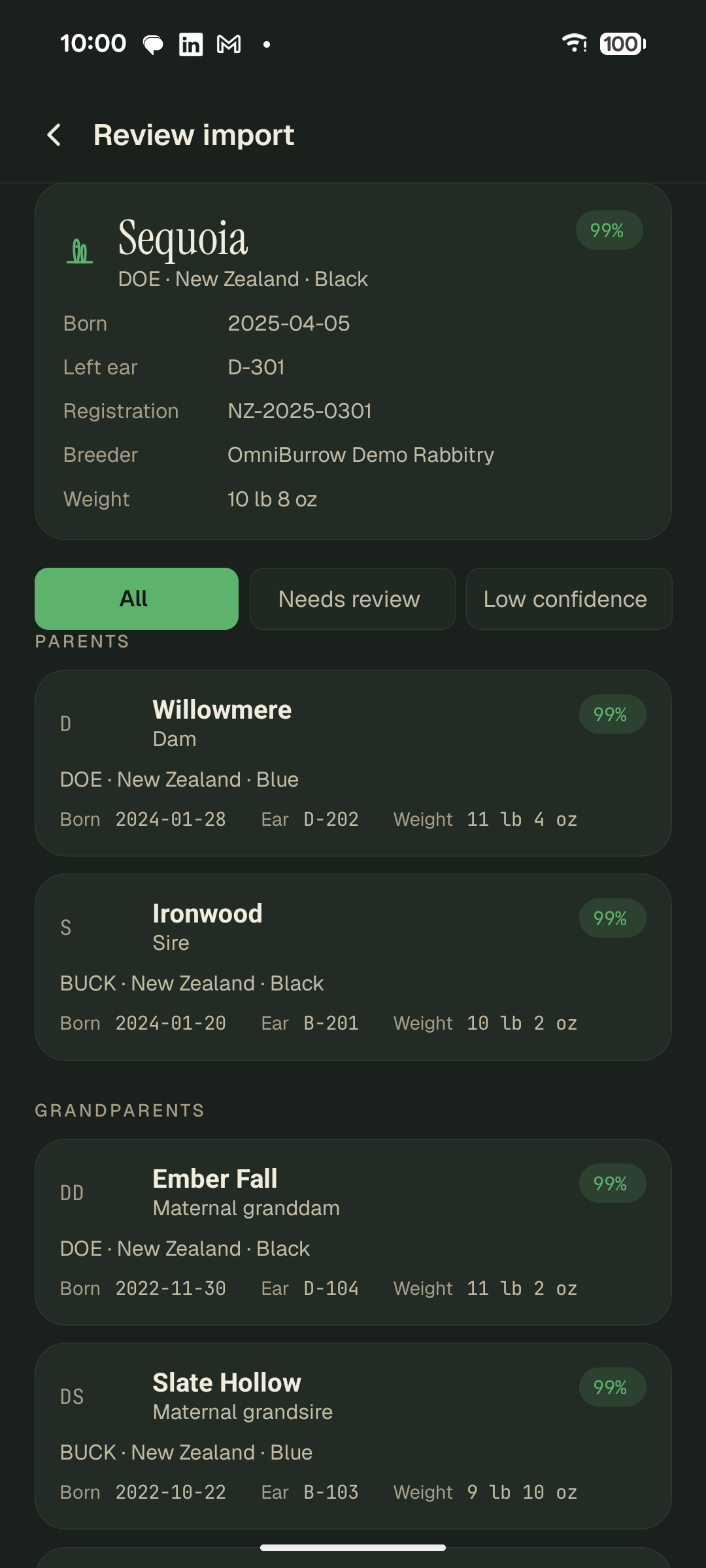
Tips for clean results
- Ancestors already in your herd are matched for you when the registration number or ear tag matches exactly. A match on name and date of birth alone is offered as a suggestion during review instead of being applied automatically, so two different rabbits that share a name are never silently merged.
- A linebred ancestor that appears twice on the same pedigree becomes one rabbit, not two — the tree links back to the same record in both positions.
- Import the youngest/subject animal's pedigree first; its ancestors come along automatically.
- Combine with CSV Import when you have both a herd spreadsheet and pedigree documents.