Import from a Spreadsheet
If your records live in Excel, Google Sheets, or an export OmniBurrow does not recognize, you map your own columns and import them the same way as a known program's file. Columns you do not map are kept in the record's notes rather than dropped, so nothing in your sheet is lost in translation. You review everything before a record is created.
Prepare your spreadsheet
- One record type per sheet. Rabbits, litters, weights, contacts, and finances each import separately, so a workbook with five tabs becomes five files.
- Give every column a header in the first row. Headers are what mapping and detection work from — a sheet that starts with data has no way to be mapped.
- Save as CSV.
.csv,.tsv, and.txtall work, and comma, semicolon, tab, and pipe separators are detected automatically. Files up to 10 MB are accepted.
Do not stack a weight log under your rabbit list in the same sheet. Each file is read as one kind of record, so a mixed file imports as whichever kind matched first and the rest of the rows are skipped.
Formats the parser accepts without any cleanup:
| Cell | Accepted |
|---|---|
| Dates | 2026-03-04, Mar 4, 2026, 4 Mar 2026, 3/4/2026, 3-4-26, and Excel's raw date serial numbers |
| Sex | buck, doe, male, female, M, F, B, D, sire, dam, boy, girl |
| Weight | 66 oz, 4.5 lb, 4 lb 2 oz, 1200 g, 1.2 kg |
| Money | $1,250.00, 1250, 1250.00 |
Two-digit years 49 and under are read as 2000s, 50 and over as 1900s. When a numeric date is
genuinely ambiguous — both numbers 12 or less, so 03/04 could be either order — OmniBurrow assumes
US month/day and flags the row on the review screen. A weight with no unit is assumed to be
ounces, and that assumption is flagged too.
Pick a record type
Five types import, and each has a minimum it needs before it can be committed:
| Record type | Needs at least |
|---|---|
| Rabbits | A name or an ear tag |
| Litters | A doe |
| Weights | A rabbit name or ear tag, a date, and a weight |
| Contacts | A name |
| Finances | A date and an amount |
OmniBurrow guesses the type from your headers and you can change it. All five import on the mobile app; the web app currently imports rabbits and contacts.
Weights, litters, and finance rows attach to rabbits you already have, so import your rabbits first. A weight whose rabbit cannot be found is skipped rather than attached to the wrong animal, and a litter whose doe cannot be found is skipped the same way.
Map your columns
- Web App
- Mobile App
- Go to Dashboard → Import data and use Move data from another program.
- Drop your CSV in. When the format is not recognized, the mapping screen opens automatically.
- Choose the record type at the top.
- Work down the list of your columns. Each one shows its first row's value so you can tell which is which, and you pick the OmniBurrow field it belongs to, or leave it on Do not import.
- Click Review mapped records.
Recognizable headers are matched for you before you start, so on a tidy sheet there is often nothing
left to do but check it. Each row shows a real sample value from your file, so you can tell ambiguous columns apart. Until
a name or ear tag is mapped, it will not let you continue.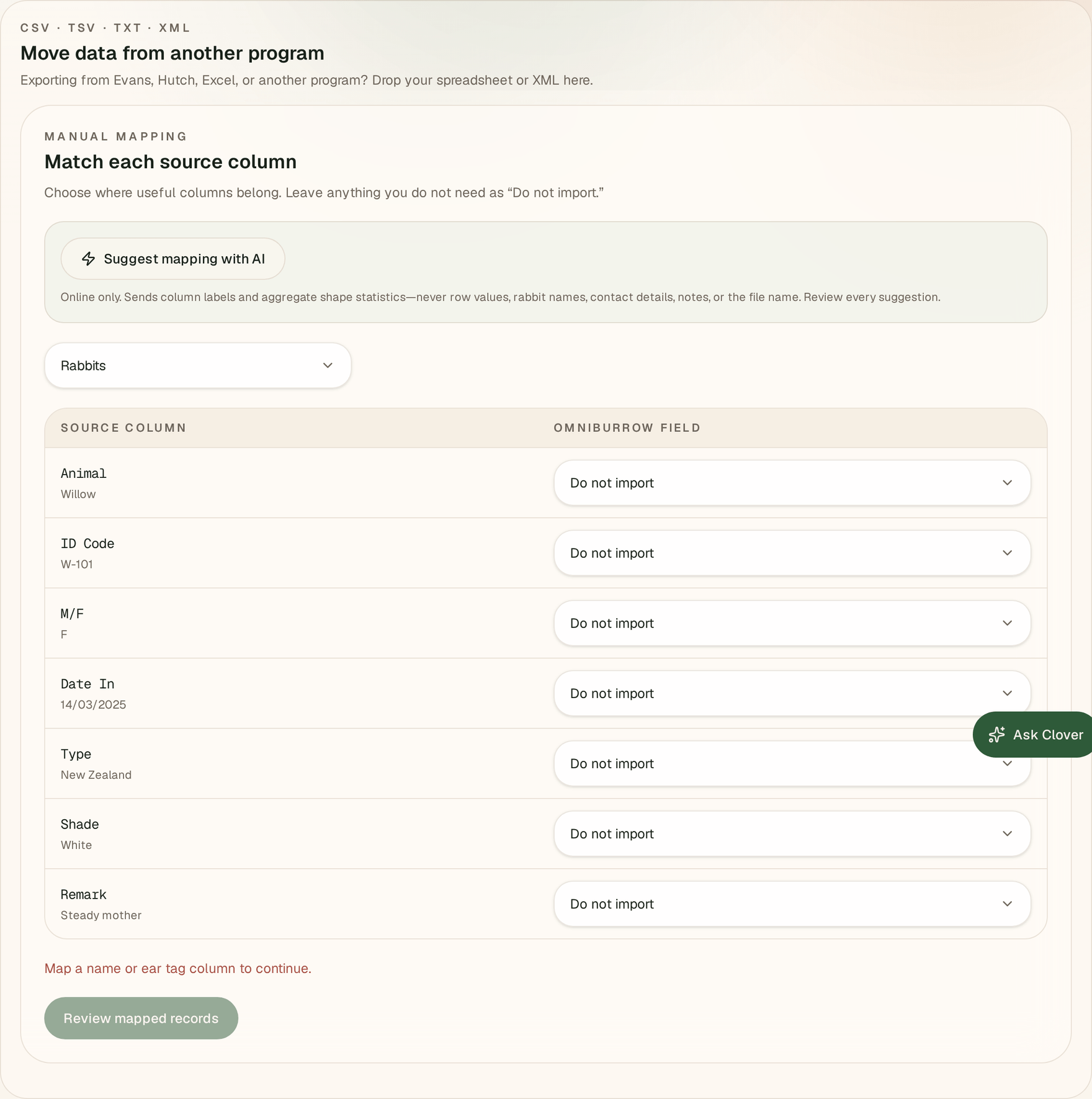
- Open More → Import, then Move data from another program.
- Tap Choose import file and pick your CSV. If the format is not recognized, tap Map columns manually.
- Choose the record type, then tap each field to pick the column it comes from. Recommended fields are listed first, with the rest behind a show more toggle.
- Tap through to the review.
Your mapping is remembered for that exact set of columns. Export the same report next month and the mapping screen is skipped entirely.
Suggest mapping with AI gives you a starting point on an unfamiliar file. It sends only your column labels and aggregate shape statistics — how often a column is filled, how often it looks like a date, a number, an email, a sex, a weight. It does not send row values, rabbit names, ear tags, contact details, notes, or the file name. The suggestion is checked against your real columns before it is shown, it never commits anything, and it needs a connection. Everything else about import works offline on the phone.
Review before committing
The review screen shows exactly what will be created before anything is written: how many records will be added, how many already exist and will be skipped rather than overwritten, and how many parent links resolved.
Warnings above the list flag breeds that did not match the ARBA catalog (kept as free text), varieties that did not match (saved as custom), parent links left unresolved or matched to more than one rabbit, weights with an assumed unit, and rows skipped for having no matching rabbit or doe.
Anything you left unmapped is written into the record's notes as a labelled list, so you can find it later on the rabbit, litter, or contact itself.
Doing it in batches
- Split a big export by record type first, then by size if any one file is over 10 MB.
- Order matters: rabbits, then litters, then weights, then contacts and finances. Everything after the first step attaches to rabbits that must already exist.
- Import pedigree documents last: see pedigree import, so extracted ancestors link to the rabbits you just imported.
- On the phone, a remembered mapping makes the second and third file of the same shape nearly instant.