Import from another program
Program Import brings in records from .csv, .tsv, .txt, and Evans .xml files—either an
export from another rabbitry app or a plain spreadsheet. Parsing and deterministic mapping run on
your device, so your file is never uploaded, and on the phone that means importing works offline.
Only the optional AI mapping suggestion needs a connection.
What it can import
OmniBurrow looks at your file and picks the best match automatically:
- Evans Rabbit Register XML (auto-detected). Animals and contacts are read from their separate backup sections, and Evans record keys preserve exact sire/dam links.
- Everbreed export (auto-detected). If your file looks like an Everbreed herd export, OmniBurrow recognizes it and maps the columns for you, including common header variations (for example, Ear Number → Ear Tag, Buck → Sire, Mother → Dam). It brings in name, ear tag, sex, breed, variety, birth date, sire/dam by name, registration number, genotype (kept in notes), and ownership status.
- Kintraks animal export (auto-detected). OmniBurrow maps the documented Kintraks animal columns, including name, tag, sex, breed, colour, birth date, parents, prefix, and cage. Call name, suffix, health, custom fields, and other Kintraks-only details are retained in notes.
- Generic spreadsheet (any app). If it's not a recognized app export, OmniBurrow falls back
to alias and value-shape matching. It can identify rabbits as well as:
- Weights: rabbit name/tag + date + weight (ounces, pounds, or grams are detected)
- Litters: doe + buck + date bred / kindled + kit counts
- Contacts: name + email/phone
- Finances: date + amount + type (income/expense) + category
On mobile, manual mapping covers all five record types. Unmapped non-empty columns are retained in the imported notes or description so an unfamiliar export does not silently lose data.
On an unrecognized file, Suggest mapping with AI sends only column labels and aggregate shape statistics such as date/numeric/email ratios. It does not send row values, rabbit names, ear tags, contact details, notes, or the file name. The answer is validated against real columns and allowed OmniBurrow fields, then shown for your review; it never commits records automatically.
BunINDEX, FarmKeep, OurRabbitry, Rabbitry-in-a-Box, and RabbitSoft do not yet have verified, dedicated auto-detection profiles because public export schemas are unavailable. Their delimited exports can use generic detection, manual mapping, or the optional AI suggestion. A header-only sample is enough for OmniBurrow to add an exact profile without exposing herd data.
Before you start
- Export your data from your old app or save your spreadsheet as
.csv. - One kind of record per file works best (a herd/rabbits file, a litters file, a finances file).
- Have your breeds in mind — OmniBurrow matches breed and variety names against the ARBA reference catalog and will flag anything it can't resolve so you can correct it.
Steps
- Web App
- Mobile App
Prerequisites
- Signed in to the Web App in a desktop browser.
- Your
.csvfile saved somewhere you can browse to.
Numbered steps
- Go to Dashboard → Import data and use the first section, Move data from another program.
- Select your export. OmniBurrow detects Evans, Everbreed, Kintraks, or a generic spreadsheet and what kind of records it holds.
- If the format is unknown, map the columns yourself or use the optional privacy-limited AI suggestion. Web program import currently commits rabbits and contacts; use mobile for litters, weights, and finances.
- On the review screen, check the parsed rows. OmniBurrow marks rows that already exist — matching on registration number first, then ear tag, then name plus date of birth, and flags any unresolved breeds, varieties, and parent links.
- Click Import to commit. Existing matches are skipped, not overwritten. Parents referenced by name are linked to existing rabbits where a match is found.
Success state
You land on a completion screen with a count of imported rabbits and contacts, and the new records
appear immediately. The review screen: counts first, then warnings, then every record it is about to create. Nothing
is written until you press Import.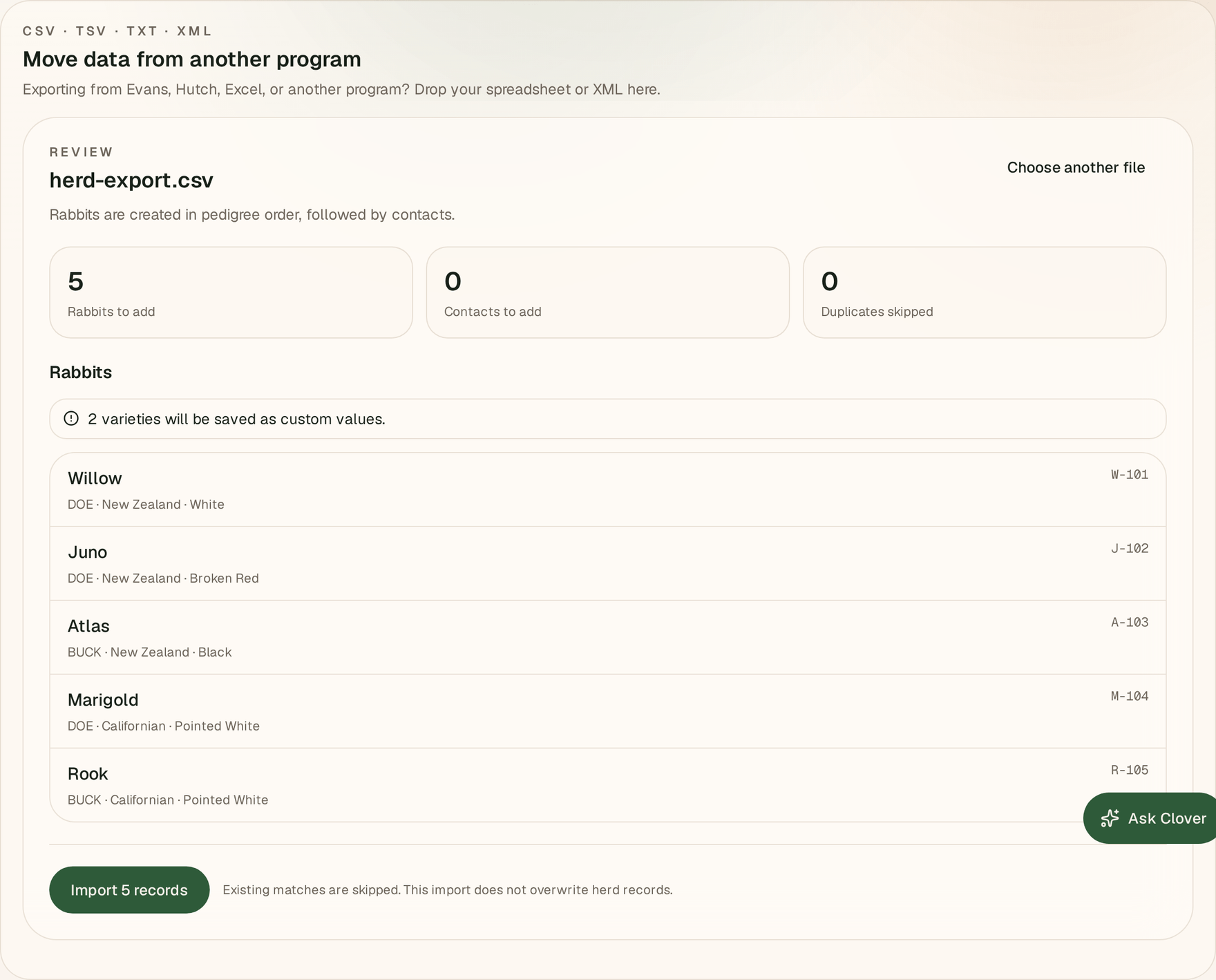
Prerequisites
- Signed in to the Mobile App. Deterministic and manual mapping work offline — you can import in the barn and sync later. Only the optional AI suggestion needs a connection.
- Your
.csvfile accessible from the device's file picker (Files app, Drive, email attachment, etc.).
Numbered steps
- Open Import → CSV from the app.
- Pick the exported
.csv,.tsv,.txt, or Evans.xmlfile. OmniBurrow detects known and generic formats plus the record type. - For an unknown format, choose Rabbits, Litters, Weights, Contacts, or Finances and map its columns. You can optionally ask AI for a privacy-limited starting suggestion, then correct it.
- On the Review screen, scan the parsed rows and check anything flagged — records that already exist, unknown breeds and varieties, and unresolved parent links.
- Tap Import. Records are written to your on-device database and linked to existing parents by name where possible.
Success state
A confirmation shows the number of records added; they appear right away in your herd. If you're
offline, they sync to the Web App next time you have signal. The phone also stops at a review screen: check what will be added, skipped, or needs attention
before you import.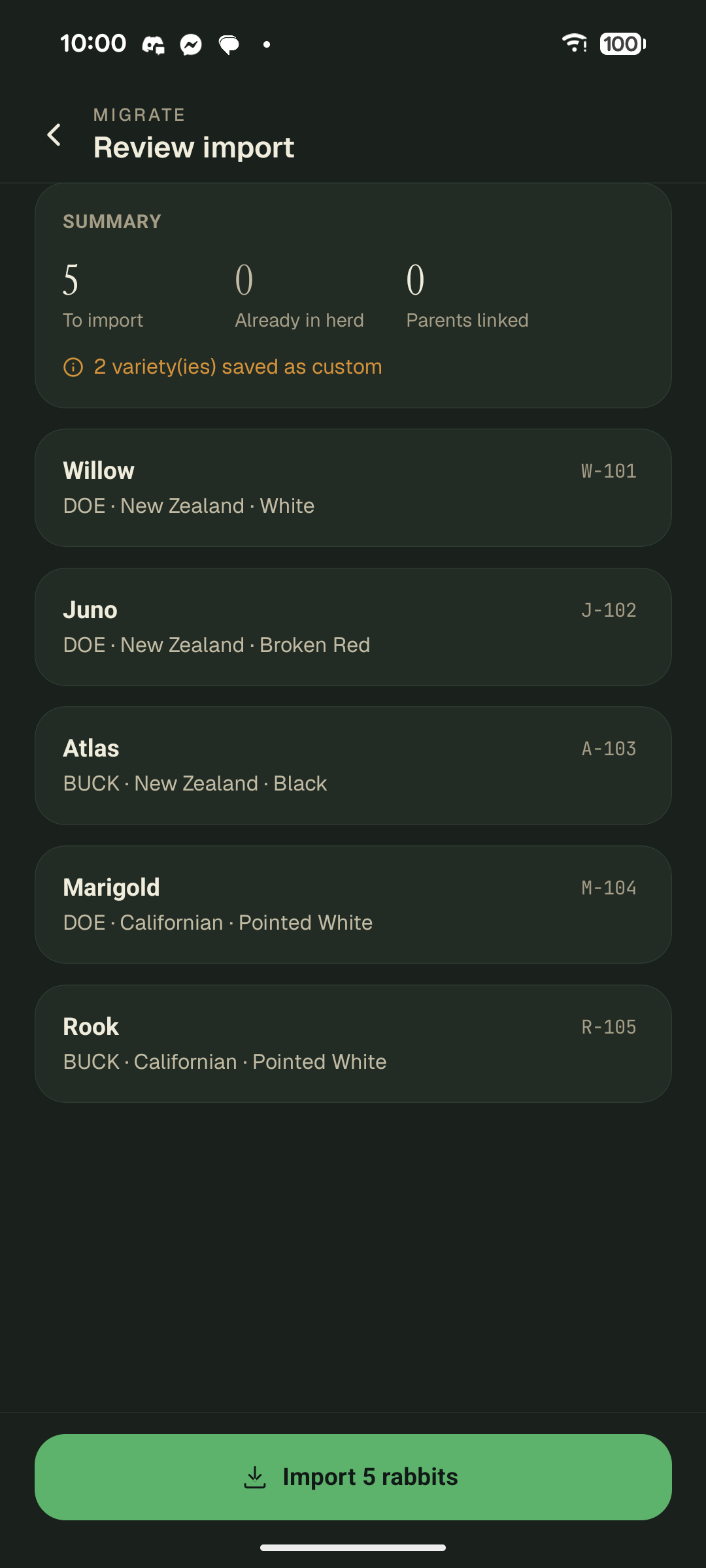
After importing
- Check parent links. Sire/dam are matched by name; if a parent wasn't in your herd yet, link it afterward from the rabbit's profile.
- Fix unresolved breeds/varieties flagged during review.
- Have pedigree documents too? Run Pedigree Import next to fill in ancestors a flat CSV can't carry.