Rabbit Records
A rabbit record is the single place everything about one animal lives: its name and ear tag, breed and variety, parents, date of birth, cage, and ownership status, plus every weight, litter, treatment, show entry, and photo attached to it over time. The identity fields matter most, because the ear tag and registration number are what OmniBurrow uses to recognize the same animal when you import records, claim a pedigree, or merge a duplicate.
What a rabbit record holds
The record is grouped into sections, and you can put them in the order that suits how you work.
| Section | What it holds |
|---|---|
| Identity | Name, ear tag, cage number, breeder name, sex |
| Breed & appearance | Breed, variety, and pattern, matched to the ARBA catalog |
| Lineage | Sire and dam |
| Details | Date of birth and ownership status |
| Registration & pedigree | Registration number, grand champion number, registration date, pedigree weight |
| Purchase finance | An optional purchase expense linked to this rabbit |
| Genetics | Optional locus notes: A, B, C, D, E, and En |
| Notes | Free text |
| Photos | Gallery, profile photo, and the circular pedigree crop |
Alongside those, the profile shows what has accumulated: the growth chart and weight history, the pedigree, health and feeding, the show record, the genetic overview, and an activity timeline. On the web app, Customize layout in the rabbit's ⋯ menu lets you drag those sections into a different order, and the order applies to every rabbit profile. On the mobile app the same content is split into Identity, Weights, Health, Tasks, Pedigree, Genetics, Events, Breeding, Processing, Shows, and Feeding, each collapsible, with the order set under Settings → Appearance.
Add or edit a rabbit
- Web App
- Mobile App
- Go to Dashboard → Rabbits and click Add rabbit.
- Fill in Identity. A name or an ear tag is enough to save.
- Pick the breed, then the variety. Choosing the exact registration variety rather than typing a custom one is what lets show classes and variety prediction work.
- Set sire and dam under Lineage if you have them. The pickers are filtered by sex and exclude the rabbit itself.
- Save. Reopen the record to add photos. They attach to a rabbit that already exists.
- Open the Rabbits tab and tap +.
- Fill in the same fields. A name or ear tag is the minimum.
- Save. This works offline; the record appears immediately and uploads when you have signal.
Editing works the same way from the rabbit's own record. Deleting is different, and worth reading before you use it.
Deleting removes the rabbit from your herd and permanently deletes its photos. Its offspring keep their pedigrees, but the photos do not come back. If the animal simply left your barn, set its ownership status to Sold, Rehomed, or Deceased instead. That keeps the record and its history intact.
Identity fields
Three fields identify a rabbit, and they are not interchangeable:
- Ear tag: the permanent tattoo in the rabbit's ear. This is the field OmniBurrow leans on hardest: importing matches on it, merging matches on it, and Barn Scan and cage cards are built around it.
- Registration number: the ARBA paperwork number, kept separate from the ear tag. It takes priority over the ear tag when matching records.
- Name: how you refer to the animal. On its own a name is not an identity: matching only trusts a name when it comes with a date of birth.
Importing a herd file, committing an extracted pedigree, and merging a duplicate all use the same order: registration number, then ear tag, then name plus date of birth. Filling in ear tags is the single highest-value bit of data hygiene in the whole app.
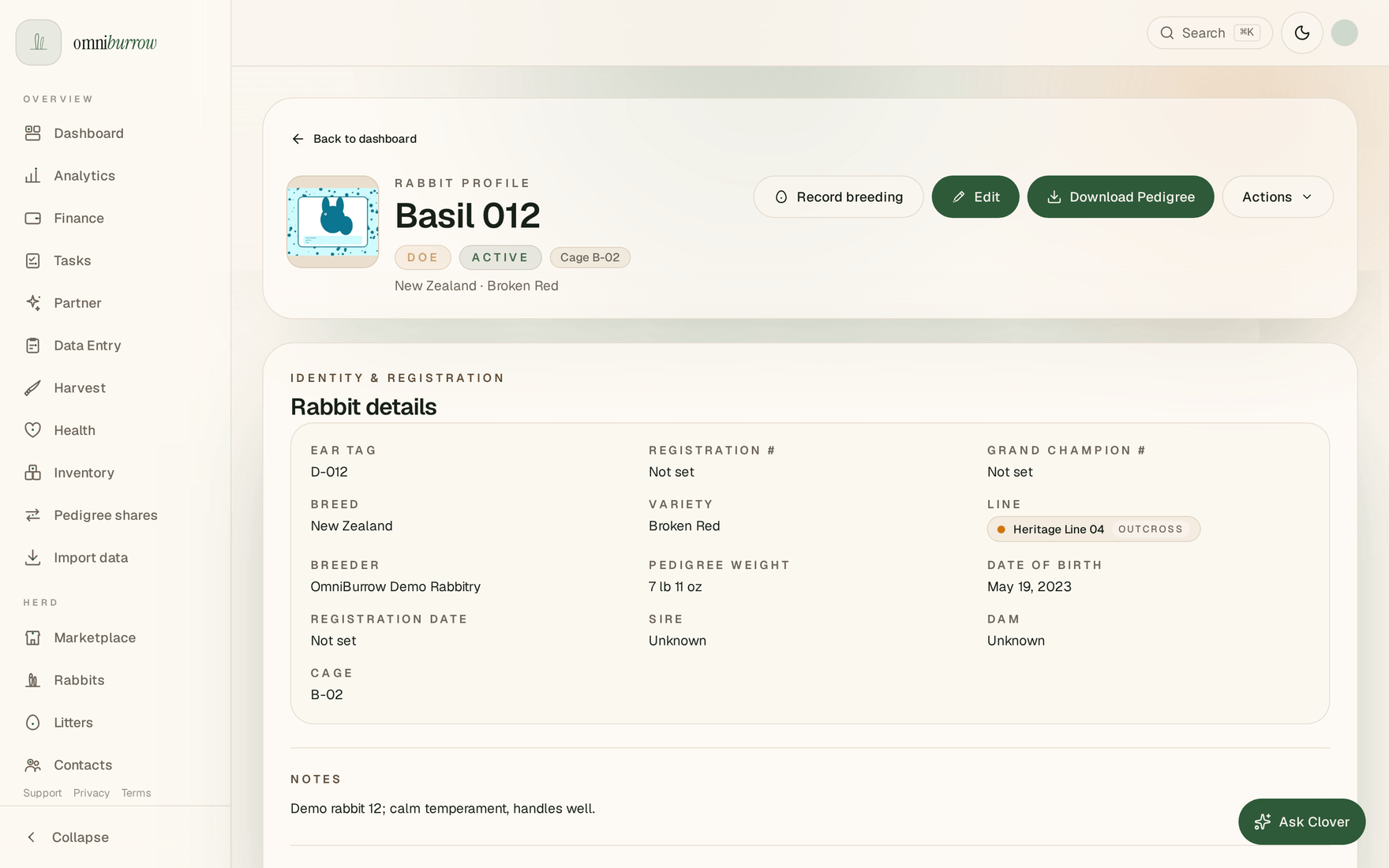
Web app: status badges first, then identity and registration. The rest of the record, covering weights, health, genetics and pedigree, runs down the page in sections.
Status and ownership
Every rabbit carries one of six ownership statuses: Active, Sold, Deceased, Rehomed, Reference, or Harvested.
Status changes what a rabbit is for, not whether it exists. A rabbit you mark Sold keeps every weight, litter, and show entry it ever had, and stays selectable as a sire or dam, so selling an animal never breaks the pedigrees of its offspring. Recording the sale properly, rather than only changing the status, is what creates the finance record and the buyer's pedigree; see Deposits & Sales.
Reference is for rabbits you do not own, such as ancestors you added purely so a pedigree is complete. They behave like any other record but are not part of your working herd.
Filtering your herd
- Web App
- Mobile App
The rabbits list has a search box covering name, ear tag, and breed, plus sex and status filters. Columns sort by name, breed, ear tag, sex, and status, and you can switch between list and grid view. Your filters live in the page's address, so a filtered view can be bookmarked or shared.
The list groups rabbits by status, with each group collapsible, which helps when an import has left you with hundreds of reference ancestors you rarely need to see. Search covers name, ear tag, tattoo, and cage number, and searching switches to a flat list across every status so an ancestor stays findable.
The filter drawer adds sex, breed, and line, and sorting offers name, youngest, oldest, and cage. There is also a QR button in the search bar: scan a cage card and it jumps to that rabbit.
All of this runs against the copy of your herd on the phone, so it works with no signal.
Merging duplicates
If the same rabbit ended up in your herd twice, usually from an import or from claiming a pedigree for an animal you had already added, merge them rather than deleting one.
Merging picks a survivor and a loser. Every record that pointed at the loser is re-pointed to the survivor: weights, health events, treatments, litters it was a parent of, show entries, sales, deposits, feed allocations, line memberships, transfers, and its place in other rabbits' pedigrees. Blank fields on the survivor are filled in from the loser, and the survivor's own values always win. The loser is then removed. You confirm by typing the loser's name.
Two rules protect you: you cannot merge a rabbit into its own ancestor or descendant, and the survivor's inbreeding coefficient is recalculated afterwards in case it gained parents.
Merge is online-only on both apps, and on mobile the rabbit must have finished syncing first. It runs across your whole account at once, which is not something the phone can do on its own.