Tasks & Reminders
Most of your task list writes itself. Recording a breeding puts palpation, nest box, and kindling on the calendar; recording a kindling adds the nest check, weaning, separating males, and the re-breed check; starting a treatment adds its doses. You add the rest by hand, set them to repeat if they repeat, and the phone reminds you at an hour you choose.
Create a task
- Web App
- Mobile App
Go to Dashboard → Tasks and add one.
Open Tasks and tap +, or use + (Quick Log) → Add task. This works offline.
A task has a title, a due date, an optional note, a priority (high, medium, low), and a type. It can also be linked to a rabbit, litter, treatment, health event, or medication, which is how an auto-generated task knows which doe it is about.
The type list covers the work that actually recurs in a rabbitry — palpate, nest box, check nest box, wean, separate males, re-breed check, weigh rabbit, weigh kits, butcher check, nail trimming, ear cleaning, cage cleaning, water system, show prep, vaccination, medication dose, vet follow-up, health check, plus custom for anything else. Picking a real type is what lets you filter a long list down to one kind of job.
Tasks OmniBurrow created for you are marked as auto-generated, and editing the record behind one regenerates it. Correcting a breeding date moves the whole chain rather than leaving stale reminders behind. See Litters & Kindling.
Recurring tasks
A task can repeat daily, weekly, every two weeks, monthly, or annually. Completing a recurring task closes the one in front of you and creates the next occurrence, so the list never runs dry and you are never looking at a task you already did.
For herd-wide routines there are also reminder templates for nail trims, weigh-ins, and health checks, which can apply to the whole herd or to individual rabbits.
Reminders on your phone
Reminders are delivered per device. Each phone registers its own preference, so the tablet in the house and the phone in your pocket do not both buzz unless you want them to.
- Tasks due today produce one notification, grouped — five tasks due is "5 tasks due", not five separate buzzes.
- Tapping it opens Tasks focused on what is due.
- Snooze from the notification: +1 hour, tonight, or tomorrow.
Server-delivered reminders and calendar export were added in a recent release and depend on native components, so they arrive with a fresh build of the app rather than an over-the-air update. If your Reminders settings screen does not offer them yet, that is why.
Reminder settings
In Settings → Reminders on the phone:
- Notify when tasks are due: the master switch.
- Notify at: the hour of day reminders arrive, in your device's own time zone.
- Calendar export: see Calendar Export.
Turning notifications off stops both server and local reminders. The app also needs system notification permission; if it was declined, the settings screen says so.
Completing and snoozing
Tick a task off and it is done — completing a recurring one rolls the next occurrence forward automatically. Reopening a completed task brings it back, and if you had exported it to your calendar the entry comes back too.
Snoozing pushes the reminder, not the due date. A snoozed task is still due when it was due; you have just asked to be told again later.
Offline behavior
Creating, completing, and editing tasks all work offline and sync when you reconnect.
Reminders have a fallback for exactly this case. A task created offline keeps a local reminder scheduled on the phone so it still fires with no signal. Once the task syncs, the server takes over and the local one is suppressed — you get one reminder, not two.
The web task list opens on a window around today — roughly the last month and the next — and loads more rows as you scroll rather than all at once. Nothing has been deleted. If a task you expected is missing, widen the date range before assuming anything is wrong.
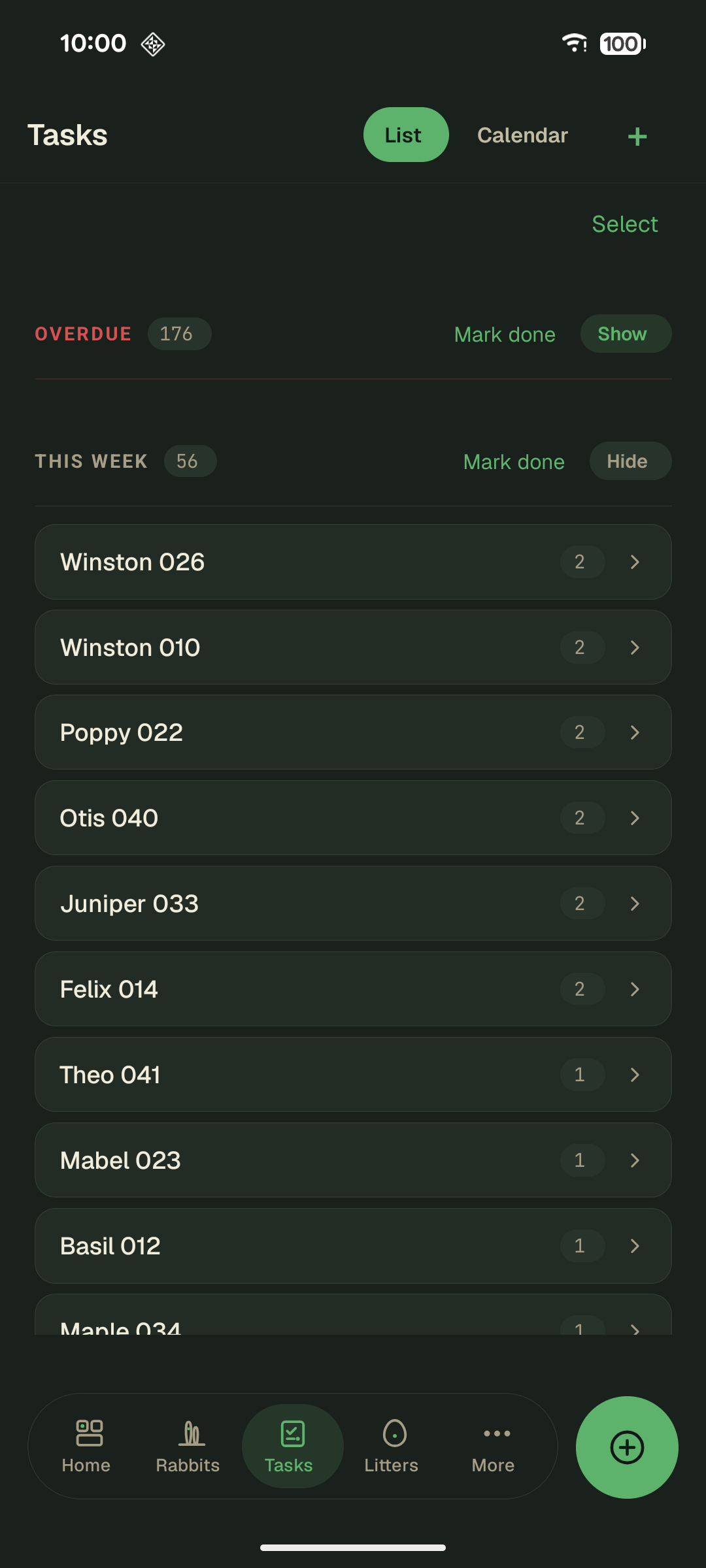
Tasks group into Overdue, This week and Later, and roll up per rabbit. Collapse a group you are not working on, or use Mark done to clear a whole group at once.